
Summary of Updated Guide on How to Program an Attiny13a or 13 With the Arduino IDE
This guide shows how to program ATtiny13/13a using the Arduino IDE and an Arduino as ISP. It covers required hardware, wiring between Arduino and ATtiny, installing slee man j core files via Boards Manager, setting Arduino as ISP, burning the bootloader, uploading a modified Blink sketch (use pin 4), testing with an LED, and step-by-step troubleshooting tips like adding capacitors, checking wiring, and ensuring updated IDE/core files.
Parts used in the ATtiny13 Programming Project:
- Arduino (Uno or any Arduino)
- ATtiny13 or ATtiny13a
- Breadboard
- Jumper Wires
- LED
- Resistor for LED
- 10uF electrolytic capacitor (optional for troubleshooting)
- Large electrolytic capacitor (100uF or larger, optional for troubleshooting)
- 9V battery or other power source (optional, not recommended alone)
The ATtiny13 series chips are extremely cheap and useful chips for small projects that don’t need a full Arduino, but due to very outdated tutorials and a lack of information, it took me the better part of a day to figure out how to program these with the Arduino IDE.
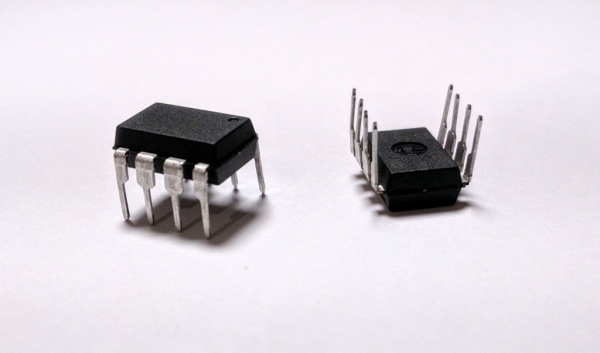
To fix this lack of information, in this Instructable, I will show you how to program your ATtiny13 or ATtiny13a with an up to date version of the Arduino IDE.
Step 1: The Hardware You Need
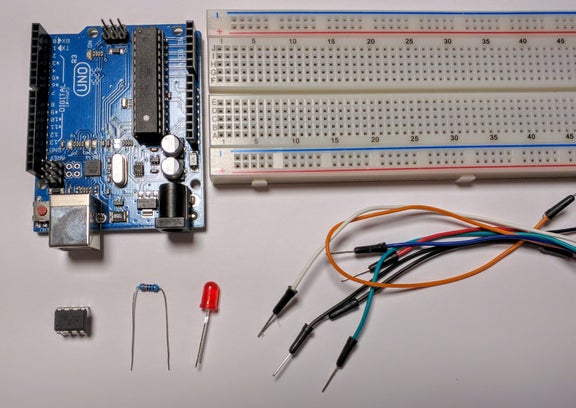
Required Hardware
• Arduino (Uno is the easiest, but any Arduino will work)
• ATtiny13 or 13a
• Breadboard
• Jumper Wires
Troubleshooting Hardware (not necessarily required)
• 10uf electrolytic capacitor
• Any large electrolytic capacitor (mine is 1000uf, but any capacitance 100uf and above will work best)
Step 2: Setting Up the Hardware
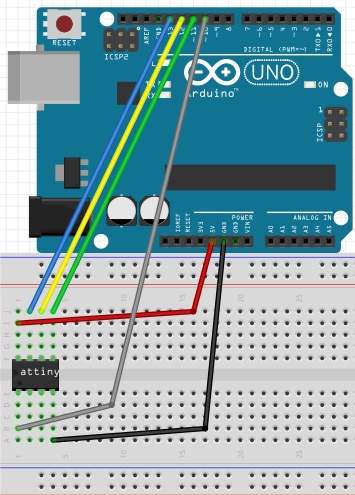
Connect the pins of the Arduino to the ATtiny as shown in the image or table below.
Important Note: Make sure to orient your ATtiny such that the indicator dot on your chip is in the bottom left corner as shown in the images (across from the 5v line). Orienting your ATtiny the opposite way can hurt the chip.
Arduino____________ATtiny13(a)
5v—————————-Pin 8
GND————————Pin 4
Pin 13———————–Pin 7
Pin 12———————–Pin 6
Pin 11———————–Pin 5
Pin 10———————–Pin 1
Step 3: Setting Up the Arduino As ISP
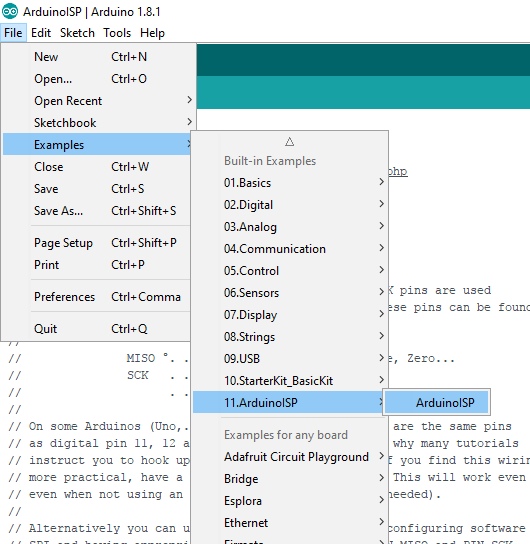
Navigate to Files-Examples-ArduinoISP and click on ArduinoISP. Upload this sketch to your Arduino. Now your Arduino is set up as a programmer for programming other chips.
Step 4: Downloading the Attiny13(a) Core Files
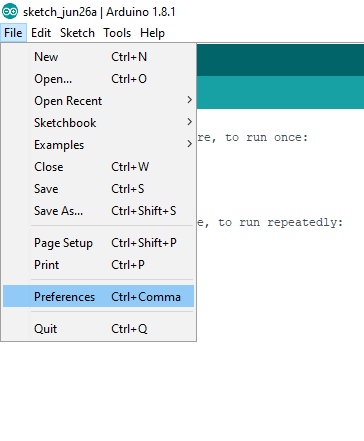
To program the ATtiny13 or 13a, you will need to install the core files. For this we will be using the core files created by sleepmanj, which I find to be the easiest to install and the best to use.
To install these files, open your Arduino IDE and navigate to the files drop-down menu, then select preferences. Paste this URL “https://raw.githubusercontent.com/sleemanj/optiboot/master/dists/package_gogo_diy_attiny_index.json” where it says “Additional Boards Manager URLs:“. If you already have a URL here and want to add more, separate the URLs with a comma and a space.
Now navigate to tools-board and click on Boards Manager…. Now scroll down until you see DIY ATtiny and click the install button (it will default to the newest version).
Step 5: Burning the Bootloader to the Attiny
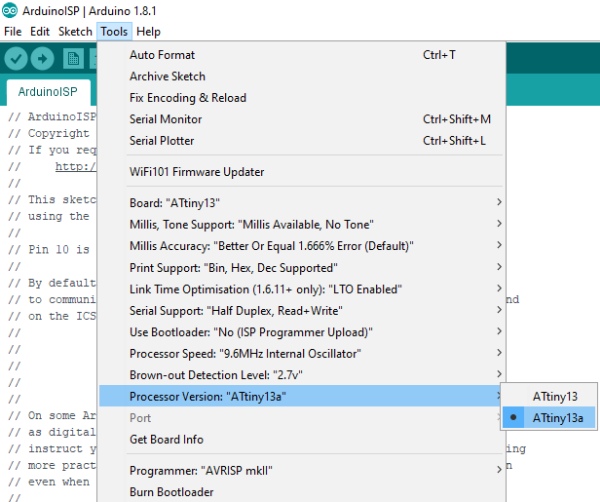
Go to Tools-Board and select ATtiny13. After selecting ATtiny13, navigate to Tools-Processor Version and select either ATtiny13 or ATtiny13a depending on your chip. Do not change any other settings until you know what they do, they can mess up what you are trying to accomplish. Finally, click the Burn Bootloader button at the bottom of the tools drop-down menu.
Important Note:You should make sure your programmer is set as “Arduino as ISP“
Step 6: Programming the Chip
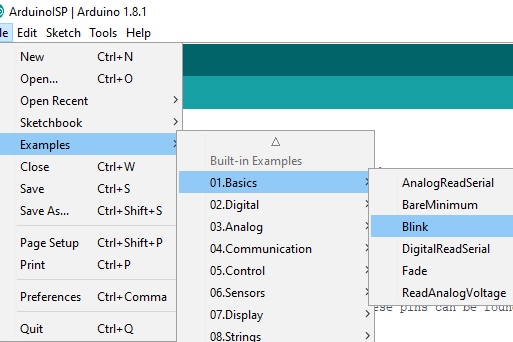
You’re at the homestretch! To make sure everything is working, let’s upload the blink sketch to the ATtiny. Navigate to Files-Examples-Basics and select Blink.
There are a few changes we will need to make though. In the program, change every instance of “LED_BUILTIN” to “4” because our ATtiny doesn’t have a built in LED. This “4” corresponds to pin 3 of the ATtiny (This can get confusing, you can reference what number in the IDE corresponds to what pin on the diagram in the “Troubleshooting” step). Now you can upload this code to your ATtiny through your Arduino by clicking the upload button.
To test to see if it worked, connect an LED (along with an appropriate resistor) between pin 3 on the ATtiny and ground as shown in the diagram and image above. The LED should be blinking on and off. If it is, congratulations! You now know how to program an ATtiny13 or 13a! You can now disconnect all wires except the 5v and ground.
If your LED isn’t blinking, don’t worry, proceed to the troubleshooting step to fix your problems.
Step 7: Troubleshooting
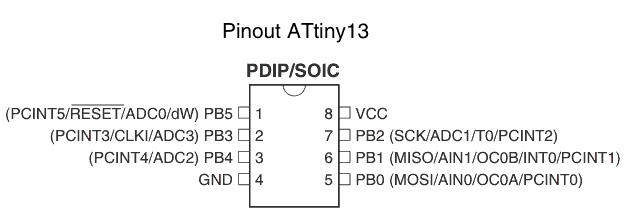
Something always goes wrong when working with new things, that’s ok! Let’s try to fix these issues. Try these in the order they show up.
• Double check all of your connections and your orientation of the ATtiny and LED.
• Re-upload the ArduinoISP sketch to your Arduino.
• Connect a 10uf electrolytic capacitor between ground and reset on your Arduino. Make sure to plug in the capacitor in the correct orientation, negative goes to ground.
• Connect any large capacitor between the 5v and ground on the breadboard, this will help smooth out any voltage spikes.
• Make sure enough power is getting to the Arduino that is programming the ATtiny, a 9 volt battery might not work.
• Switch out your Arduino with a different Arduino
• Make sure you’re using an up to date IDE and up to date core files
• Click on tools and make sure the drop down menu looks the same as the menu shown in the “Burn the Bootloader” step. If something is different, change it and re-burn the bootloader.
Source: Updated Guide on How to Program an Attiny13a or 13 With the Arduino IDE
- What hardware do I need to program an ATtiny13 with the Arduino IDE?
An Arduino (Uno recommended), an ATtiny13 or 13a, a breadboard, and jumper wires are required; an LED and resistor are used for testing. - How do I wire the Arduino to the ATtiny13?
Connect Arduino 5v to ATtiny pin 8, GND to pin 4, Arduino pin 13 to ATtiny pin 7, pin 12 to pin 6, pin 11 to pin 5, and pin 10 to pin 1. - How do I set up the Arduino as a programmer?
Open Files-Examples-ArduinoISP, select ArduinoISP, and upload that sketch to your Arduino. - How do I install the ATtiny13 core files in the Arduino IDE?
In Preferences paste https://raw.githubusercontent.com/sleemanj/optiboot/master/dists/package_gogo_diy_attiny_index.json into Additional Boards Manager URLs, then use Boards Manager to install DIY ATtiny. - How do I burn the bootloader to the ATtiny13?
Select Tools-Board ATtiny13, choose the correct Processor Version (ATtiny13 or ATtiny13a), ensure programmer is Arduino as ISP, then click Burn Bootloader. - How do I upload the Blink sketch to the ATtiny13?
Open Files-Examples-Basics Blink, replace LED_BUILTIN with 4, then upload using the Arduino programmer. - Which pin corresponds to the LED in the sketch?
Use 4 in the sketch, which corresponds to pin 3 on the ATtiny. - What should I try if programming or the LED test fails?
Verify wiring and orientation, re-upload ArduinoISP, add a 10uF capacitor between reset and ground on the Arduino, add a large capacitor between 5v and ground, ensure adequate power, try a different Arduino, and confirm IDE and core files are up to date. - Do I need capacitors for successful programming?
Capacitors are optional but recommended for troubleshooting: a 10uF between reset and ground and a large capacitor (100uF or more) between 5v and ground can help.
