
Summary of Getting Started with Atmel Studio
Atmel Studio 7 is a free IDE for developing, compiling, and debugging AVR microcontroller programs. This guide shows creating a new project for an ATmega16, writing a simple LED blink program in C, building to produce a .hex file, and uploading it to the MCU using AVRDUDE (via the SinaProg GUI) with a USBasp programmer. After flashing, an LED connected to PORTB blinks with 500 ms intervals.
Parts used in the ATmega16 LED Blinking Project:
- Atmel Studio 7 (IDE)
- ATmega16 microcontroller
- LED
- Resistor for LED (implied)
- USBasp programmer
- AVRDUDE (program to burn hex)
- SinaProg (AVRDUDE GUI)
- Computer for development
- Connecting wires/breadboard (implied)
Introduction
Atmel, AVR microcontrollers (MCUs) are very easy to use. All AVR microcontrollers require Integrated Development Environment(IDE) such as Atmel Studio. Using this IDE, we can create, compile, and debug programs on all AVR microcontrollers.
Atmel Studio is available free of charge. To download and install the latest Atmel studio use this link.
Note: There are possibly two options for downloading and installing Atmel Studio as online/offline. Atmel recommends for online web installer so use an online web installer if possible.
Here, we are using Atmel Studio 7 as the currently the latest IDE for developing the program of Atmega16 microcontroller.
Atmel Studio 7 includes the GCC C and C++ compiler, assembler, and a simulator, and interfaces seamlessly with in-system debuggers and programmers to make code development easier.
Let’s develop a simple LED Blinking program for ATmega16 using Atmel Studio 7
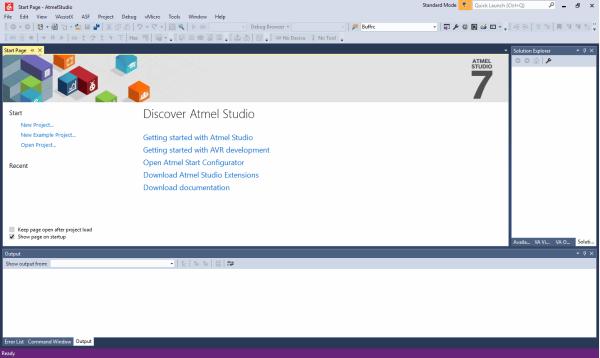
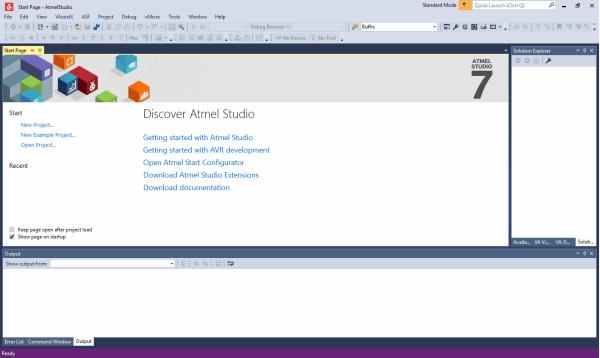
1. After done with downloading and installing, Open Atmel Studio 7. We can see Start Page as shown in the below figure.
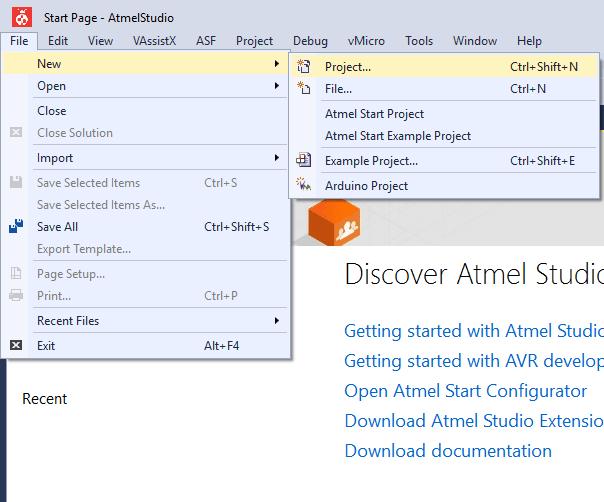
2. Now to create a new project Click on File -> New -> Project or simply use Ctrl+Shift+N Short keys.
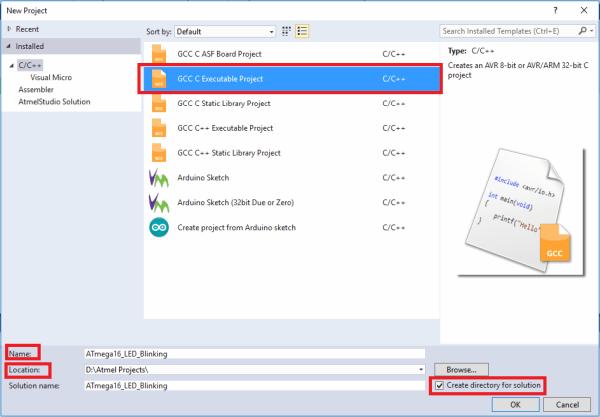
3. A New Project window will pop up as shown in the below figure. In the New Project window, we need to select the project type as listed in the below figure, the Name for the project (which may title of the project), and the Location to where we can save project work.
Also, there is an option Create directory for a solution, which will create a project directory with the name of the project at the provided location.
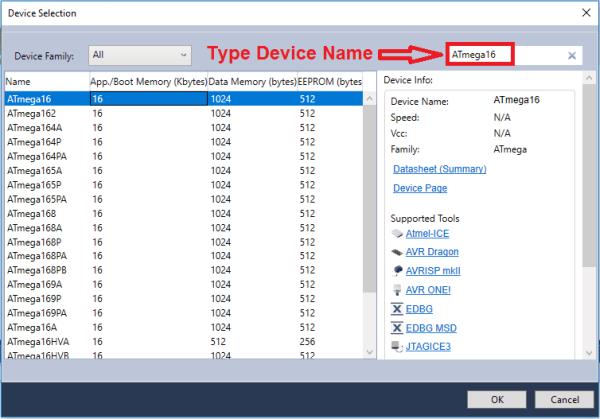
4. After clicking on OK, the Device Selection window will pop up as shown in the below figure. In that, we can directly type the device name to get the required device from the device list shown in the below figure.
Click on the device name and then click OK. Here we have selected the ATmega16 microcontroller device.
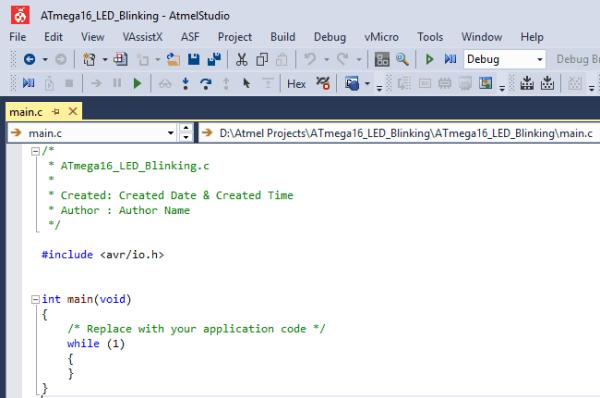
5. Now wait till Atmel studio creates a project and main.c file to write a program for the selected device as shown in the below figure.
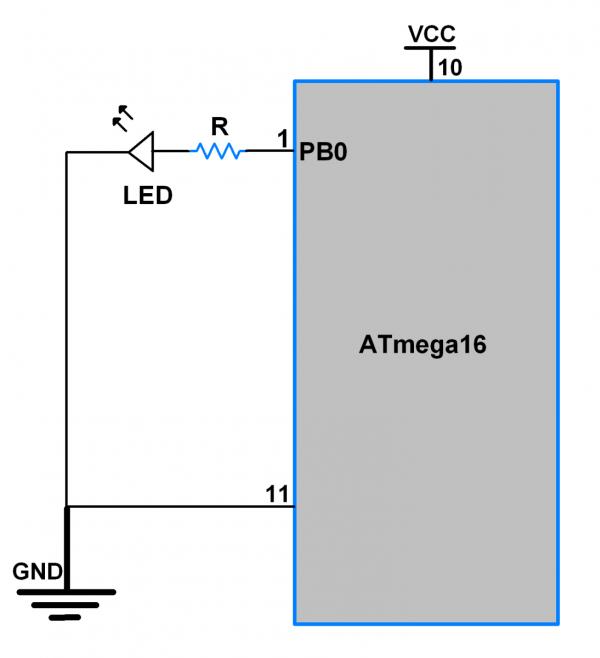
6. Now write a program. Here we are writing a program for LED Blinking connected to a PORTB of ATmega16.
Program
/*
 * ATmega16_LED_Blinking.c
 * http://www.electronicwings.com
 * Created: Created Date & Created Time
 * Author : Author Name
 */

#define F_CPU 8000000UL	/* Define CPU frequency here 8MHz */
#include <avr/io.h>
#include <util/delay.h>


int main(void)
{
    DDRB = 0xFF;	/* Make all pins of PORTB as output pins */

    while (1)		/* Blink PORTB infinitely */
    {
	PORTB = 0x00;
	_delay_ms(500);	/* Delay of 500 milli second */
	PORTB = 0xFF;
	_delay_ms(500);
    }
}
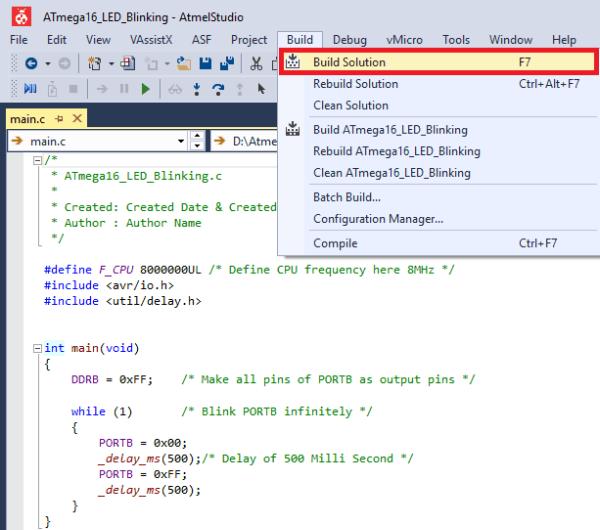
7. After writing the program, save (Ctrl+S) the program and click on Build Solution from the Build menu as shown in the below figure.
Also, we can use the F7 short key for the Build solution.
8. Now we can see build succeeded output in Output Window (lower left corner of window) as shown in below figure.
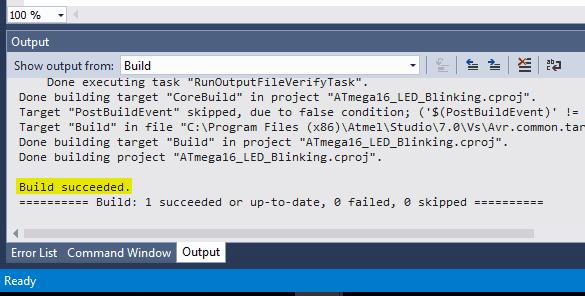
9. Now we can see generated.hex file in the Debug directory of the main project directory. Here we have created a hex file at,
D:\AtmelProjects\ATmega16_LED_Blinking\ATmega16_LED_Blinking\Debug\ ATmega16_LED_Blinking.hex
10. Now upload this hex file to the ATmega microcontroller. AVRDUDE is a program to burn hex code into the Atmel AVR microcontroller.
SinaProg (find in attachment given below) is AVRDUDE GUI software, which utilizes the AVRDUDE program to burn hex code into the Atmel AVR microcontroller using USBasp.
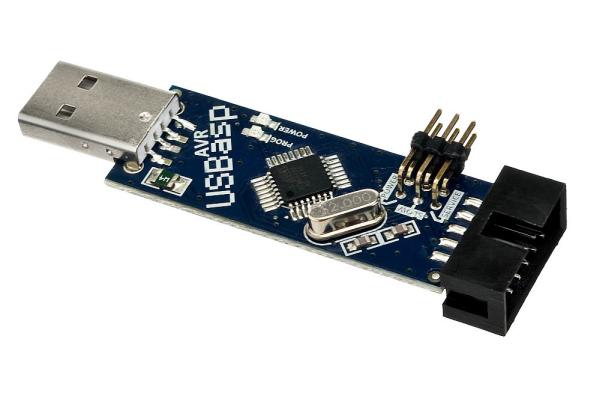
USBasp is a USB in-circuit programmer for Atmel AVR controllers.
11. After uploading the above program connect the LED to ATmega16, it will start blinking as shown below.
Source: Getting Started with Atmel Studio
- How do I create a new project in Atmel Studio 7?
Use File -> New -> Project or Ctrl+Shift+N, set project type, name, and location, then click OK. - How do I select the ATmega16 device in Atmel Studio?
After creating the project, the Device Selection window appears; type and select ATmega16 from the device list and click OK. - What code configures PORTB as output and blinks an LED?
Use DDRB = 0xFF to set PORTB as outputs, then toggle PORTB between 0x00 and 0xFF with _delay_ms(500) in a loop. - How do I build the project to get a hex file?
Save the code, then choose Build Solution from the Build menu or press F7; the .hex appears in the Debug directory on success. - Where is the generated hex file located?
The .hex is in the project's Debug folder, for example Debug/ATmega16_LED_Blinking.hex. - How do I upload the hex file to the ATmega16?
Use AVRDUDE to burn the hex; the guide recommends using SinaProg as a GUI for AVRDUDE with a USBasp programmer. - What programmer is used to flash the ATmega16?
The guide uses the USBasp in-circuit USB programmer. - Does Atmel Studio include a compiler and simulator?
Yes; Atmel Studio 7 includes GCC C/C++ compilers, an assembler, and a simulator.
