
Summary of EAGLE Autorouter, When & How To Use
This article explains how to use Autodesk EAGLE's autorouter to optimize component placement, identify routing bottlenecks, and gain design inspiration. It clarifies that the tool augments manual routing rather than replacing it entirely. The guide details three specific use cases: checking if 85% completion indicates good placement, finding crowded areas between ICs, and learning new strategies by observing automatic routes. Finally, it outlines the setup process within the software, including adjusting preferred directions, effort levels, and thread counts before generating routing variants.
Parts used in the EAGLE Autorouter Project:
- Autodesk EAGLE Control Panel
- PCB layout file (.brd)
- Autorouter tool interface
- Autorouter Main Setup dialog
- Routing Variants dialog
Designing a PCB layout is a work of engineering art, includes placing components and routing them through different layers. So when you assign the same job for different engineers, each one would make it in his own way. But sometimes when working on a complex design some help may be necessary to finish the work. Autodesk EAGLE provides an autorouter feature which may assist you in many cases.
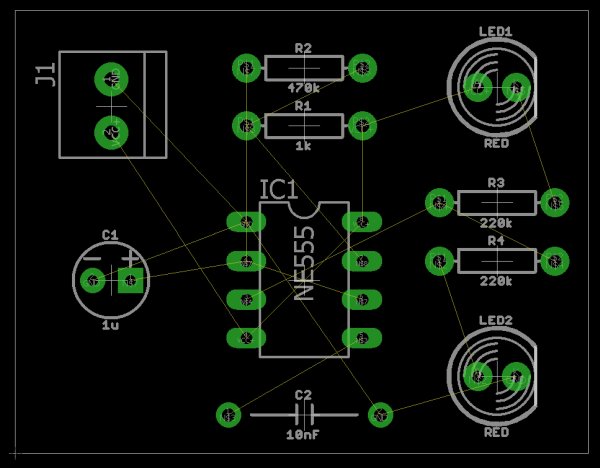
The autorouter is a useful tool that creates many routing variations for the current component placement. However, it is not a completely replacement of manually routing method. It can help you in specific situations to augment your abilities, not replace them.
When to use the autorouter?
There are three main uses of the autorouter:
- Optimizing Placement
While there is no rule for placing the components of the circuits, you need to evaluate your placement to ensure that you can route all parts. Autorouter completion result could be used as an indicator of your parts placement, if it was 85% or greater this means you did a good job. If not, consider pushing your parts around. - Discovering Bottlenecks
You can also use the autorouter to identify bottlenecks and other critical connection points that you might have missed when placing your components. Maybe you packed a couple of ICs too close together. Your autorouter can show you where you might need to leave more space between components. - Getting Inspired
When you are stuck on a section and don’t know how to route your parts, then you can call the autorouter to see how it takes care of the job, then try routing that same spot yourself with your new perspective. You might just find a strategy for your traces that you didn’t see before your autorouter gave it a try.
Using EAGLE Autorouter
Now when you find yourself stuck on some area or you feel that you need to optimize your placement or discover the bottlenecks, it is time to launch the autorouter. Follow these steps to know how it works:
- Open your PCB layout (.brd) file from your Autodesk EAGLE Control Panel.
- Select the Autorouter tool on the left-hand side of your interface to open the Autorouter Main Setup dialog.
- There’s quite few settings here that you can adjust:
Preferred direction: if you need a specific direction of the route, like vertical or horizontal, select it for each layer or you can set it to Auto. N/A means that the autorouter will not use this layer.
-
- Effort: this option defines how the autorouter will work, higher effort will take more time and will provide more more routing variances.
- Number of threads: how many threads of the CPU you want the autorouter to use? This surely will affect the time it takes to finish.
After selecting your settings, press the Continue button.
- Within the Routing Variants dialog, you’ll see a list of all the routing variations the autorouter will attempt. Select the Start button to begin the autorouting process.
Read more: EAGLE Autorouter, When & How To Use
- When should you use the autorouter?
You can use it to optimize placement, discover bottlenecks, or get inspired when stuck on a section. - Can the autorouter replace manual routing?
No, it is not a complete replacement but helps augment your abilities in specific situations. - What does an 85% completion result indicate?
An 85% or greater completion rate suggests you have done a good job with your parts placement. - How does the Effort setting affect the process?
Higher effort takes more time but provides more routing variances. - Does the Number of threads option change the outcome?
Yes, it affects the time it takes to finish the autorouting process. - What happens if you set Preferred direction to N/A?
The autorouter will not use that specific layer for routing. - How can the autorouter help discover bottlenecks?
It shows where you might need to leave more space between components like ICs. - What is the best way to get inspired using this tool?
Run the autorouter on a stuck section to see its strategy and apply that perspective manually.
