
Summary of Use Visual Studio 2010 to Compile AVR Hex Files using AVR microcontroller
This article guides users on configuring Visual Studio 2008/2010 with WinAVR to compile AVR microcontroller programs into Intel Hex files. It details creating a Makefile project, setting build commands, and enabling Intellisense via Common Language Runtime settings for efficient development.
Parts used in the Visual Studio AVR Setup:
- Visual Studio 2008 or 2010
- WinAVR
- Makefile Project
- Intel Hex file format
- AVRDUDE
- AVR Programmer
- Subversion (optional version control)
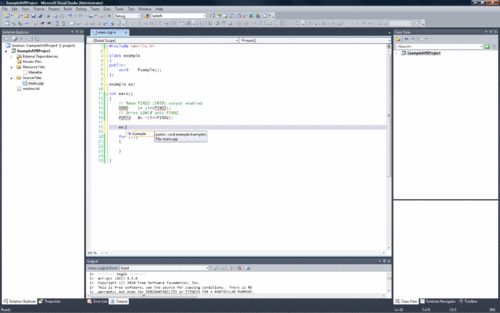 I’m not a huge fan of Microsoft, but man, they do make one slick programming IDE. In searching around for a solution to use the IDE to program AVR’s I came across some scattered instructions. As I love the intellisense feature of Visual Studio (VS) that automatically makes suggestions for class methods and structure functions and members, I tend to use the IDE when working in largish-sized AVR projects.
This brief instructable will show you how to setup Visual Studio 2008/2010 to use WinAVR and compile your AVR programs into Intel Hex format suitable for uploading to your AVR/Arduino with AVRDUDE and your favorite programmer.
P.S. Don’t forget that if there is an “i” in the upper corner of the picture, you can click it and select a a larger image!
Step 1 Create your Makefile Project
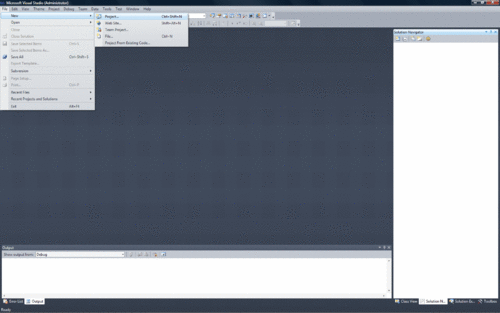 Open Visual Studio 2010 and create a new Makefile project.
Select File->New->Project
Then select Visual C++ Projects and scroll until you see Makefile Project.
Select Makefile project, select a name for your project and whether you want VS to create a directory and import into Subversion or another version control management system.
Click Ok
Configure via Wizard
You will get a wizard dialog to create the Makefile project.
Select next to go to the first real page of the wizard.
In the next dialog (see below), you will fill in several boxes.
- For “Build Command Line” type make
- For “Clean commands: type make clean
- For “Rebuild command line:” type make all
- Change the name of the executable file output to the name of your hex file with the hex extension.
- In the “Include search path” type the name of the WinAVR include directory. For me, it’s C:\WinAVR\avr\include
Click NEXT.
Select the checkbox that makes the configuration the same for debug and deployment solutions, if not already checked.
Click NEXT or FINISH.
Step 2 Configure Your Makefile Project
Visual Studio has now created your default Makefile project. You must configure it a little more before you can start programming.
Select the project and right click to select Properties.
Under General, select Common Language Runtime and select the option for Common Language Runtime Support (/clr). This option gives you that nifty Intellisense support.
Click on NMake and ensure that your values are there for the make build commands, as well as your output hex file and ensure your include search path has been prepended or appended to the Include Search Path text box. If not, add it/them now.
For more Detail: Use Visual Studio 2010 to Compile AVR Hex Files using AVR microcontroller
-
How do I create a new project for AVR programming in Visual Studio?
Select File, then New, then Project, choose Visual C++ Projects, scroll to Makefile Project, and click Ok. -
What command should be entered for the Build Command Line?
Type make into the Build Command Line box during the wizard configuration. -
How can I enable Intellisense support for AVR projects?
Under General properties, select Common Language Runtime Support (/clr). -
What is the required output format for uploading to an AVR?
The executable file output must be named as a hex file with the hex extension. -
Where should the include search path point to?
It should point to the WinAVR include directory, such as C:WinAVRavrinclude. -
What command is used to clean the project?
Type make clean in the Clean commands field within the wizard.
