
Summary of Assembling the Dragon Rider 500 for use with the AVR Dragon using ATmega88 microcontroller
The article details the assembly of the Dragon Rider 500, a development board by Ecros Technology designed to interface with the Atmel AVR Dragon programmer. It guides users through installing components like resistors, capacitors, and IC sockets, while highlighting add-on kits for RS232, LEDs, buttons, and LCDs. The author emphasizes using proper tools, such as a grounded soldering iron and anti-static gear, to ensure professional results during the build process.
Parts used in the Dragon Rider 500:
- Dragon Rider 500 PCB
- AVR Dragon Programmer
- AVR Microcontroller (e.g., ATmega88)
- Basic Parts Kit
- Advanced Parts Kit
- LED and Button Add-on Kit
- RS232 Add-on Kit
- Power Supply Add-on Kit
- LCD Add-on Kit
- Ribbon Cable
- Extra shunts
- Extra pin header sockets
- Extra pin headers
- Plexi-glass for bottom protector
- 4-40 machine screws
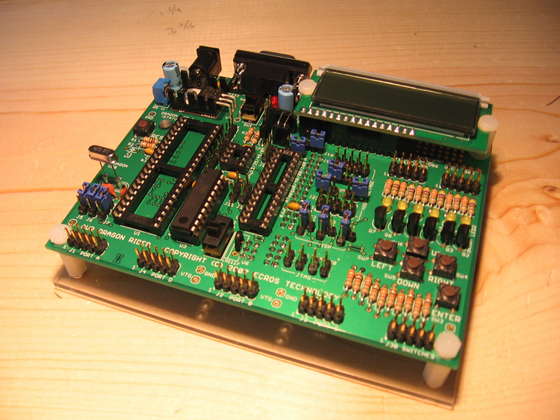 Not long ago the Atmel company came out with a great tool for use with the AVR line of microcontrollers called the AVR Dragon. This small USB device provides professionals and hobbyists alike the ability to use: In System Programming (ISP), JTAG, Debug Wire, and High Voltage Programming. Unfortunately the device itself doesn’t include all the components necessary, nor a reasonable amount of space for development using these functionalities. This is where the Dragon Rider 500 comes in.
The Dragon Rider 500 is a development system produced by Ecros Technology. It provides a means of interfacing 8, 20, 28, and 40 pin microcontrollers with the Dragon’s programming functions and includes development opportunities such as RS232, LED, Button, and LCD prototyping through its add-on packages. This creates a marriage of the functionality of the STK500 with features of the AVR Dragon.
My fiancee gave me this kit as a birthday present and I think it’s a great gift! Stay away fellas, she’s spoken for.
Update: I had sent several inquires to Graham Davies of Ecros Technology while I was working on this project. He was extremely helpful and once he saw this instructable, offered to send me a complimentary LCD and Ribbon Cable Add-on Kit as these were the only two that I didn’t have. Those kits are detailed in steps 14 and 15. Thank you Ecros Technology!
It should be noted that during this instructable components of all Add-on kits will be installed concurrently. These packages are not necessarily designed to be installed one at a time.
Step 1 The parts and where to get them
Required:
-
- Dragon Rider 500
- AVR Dragon
- AVR Microcontroller
Suggested:
-
- Dragon Rider Add-on Kits
Optional:
-
- Extra shunts
- Extra pin header sockets
- Extra pin headers (I had enough left over from the Basic Parts kit)
- Plexi-glass for bottom protector
- 4-40 machine screws for bottom protector
Documentation:
-
- Dragon Rider User’s Guide – available at the Ecros Tech website
The Dragon Rider 500 kit is produced by Ecros Technology and can be purchased in several different configurations from just the PCB to the PCB all of the hundreds of parts that make up the various Add-On packages. Assembly of this kit is the focus of this instructable. Purchase the kit directly from the manufacturer:
http://www.ecrostech.com/
The AVR Dragon is produced by the Atmel corporation. Features and documentation can be found at the Atmel website. The Dragon itself can be purchased from various electronics suppliers such as Digikey and Mouser. For this instructable it is assumed that you already own an AVR Dragon.
http://www.atmel.com/dyn/products/tools_card.asp?tool_id=3891
AVR Microcontrollers can be purchased from many electronics suppliers. Popular chips include the ATmega8, the ATtiny2313, and the ATtiny13. You will need at least one of these chips to do anything with the AVR Dragon or the Dragon Rider 500. Ecros Tech has at least one type of AVR available for purchase (ATmega88).
Step 2 The Package Arrives
The Dragon Rider 500 arrived and here’s what’s in the box:
-
- High-quality Printed Circuit Board (PCB)
- Basic Parts Kit
- Advanced Parts Kit
- LED and Button Add-on Kit
- RS232 Add-on Kit
- Power Supply Add-on Kit
The High-quality pcb is truly the highest of quality. The parts are also top notch, even the pin headers are pre-tinned. This makes ordering the parts from Ecros a smarter idea than trying to source them yourself. That being said, it looks like the only thing that you might not already have in a spare parts box would be the 2×5 2×3 and 2×10 pin header sockets used to attach the Dragon Rider 500 to the AVR Dragon.
The Dragon Rider page has a list of the add-on packages that includes a complete parts list. I will be detailing every add-on package except the LCD add-on as I do not have that available to me.
Update: The LCD and Ribbon Cable kits were sent to me by Graham Davies of Ecros Tech with his compliments. I have added these kits to step 14 and 15.
Update 2: I just heard from Graham over at Ecros Tech, the PCB actually has gold contacts… (bling bling). That means the contacts will not oxidize like copper would if left unsoldered for a while.
Step 3 Tools and Work Area
I do not have a state-of-the-art electronics work bench. For this project I will be working in the livingroom but that doesn’t mean the assembly process will be less than professional. Here are the tools and work area I use for electronics assembly:
Tools:
-
- 15-watt grounded soldering iron
- soldering iron stand
- .032 60/40 solder
- wet sponge
- third hand
- desoldering bulb
- desoldering braid
- anti-static wrist strap
- diagonal cutters
Work Area:
-
- soft towel
- 12″x24″ pine board
- desk lamp
Because we will need to solder some pin headers onto the sensitive AVR Dragon I feel it necessary to use a grounded soldering iron. To take further precautions I will be wearing an anti-static wrist band while soldering as well. A 15-watt iron doesn’t get very hot and this should help to ensure a “gentle” soldering process for our components. I like to have desoldering tools on hand in case I make a mistake. Planning ahead will save you time and help minimize the damage done by mistakes.
Step 4 Resistors and Capacitors
To install the axial (a lead coming out of two opposite sides of a component) components just bend their leads at 90 degree angles so they will fit in the through-holes on the printed circuit board.
1. Bend and insert the resistors for R1-R4.
- R1, R2, and R4 are in the basic parts package, R3 is in the advanced parts package
- Double, and triple check the resistor color codes to ensure they match the values printed on the PCB. Replacing these with correct components later will be a major hassle.
2. Bend and insert the axial capacitors for C2 and C5-C9.
- All of these axial capacitors are located in the basic parts kit.
3. Flip the board over and solder each component
- If you bent the leads at a 45 degree angle after inserting them in the board none should fall out (or move) when you flip the board over
- Make sure to double check that you soldered every one of the leads.
4. Clip off the excess using your diagonal cutters.
Caution: Installing R3 (and later U5) commits you to using the precision voltage reference provided in the advanced parts package for Analog to Digital conversions. This also precludes you from using the internal voltage reference for ADC. Read the Caution section of the Dragon Rider User’s Manual if you are installing the precision reference. You can choose not to install the precision reference (and not install R3 as well), read the User’s Guide and make your own decision regarding this.
Please Note
Do not install C1. It is not provided and is not necessary according to the ecros website which describes it as a “de-gliching” capacitor for the reset pin.
Step 5 Insert and Solder Sockets
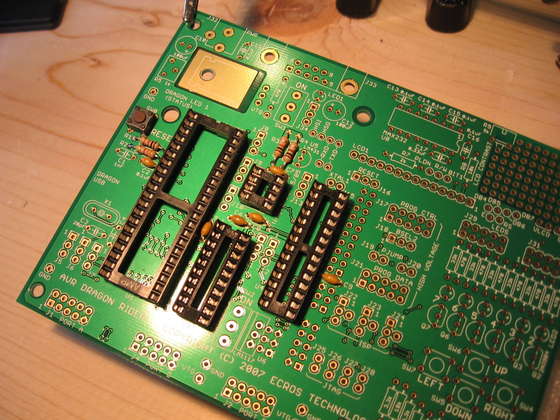
Next we solder in the sockets to hold the Integrated Circuits.
NOTE
I have decided to use a 16 pin socket for the RS232 chip. There is a good possibility that using a socket instead of soldering the chip directly to the board will create a problem. if you intend to install the LCD add-on kit the chip may stand in the way due to the height increase caused by the socket. Make sure you test for this issue before you decide to use a socket. I do not have the lcd add-on kit so it will pose no problem for me.
Update: Graham Davies of Ecros Tech sent me a complimentary LCD add-on kit after reading this instructable. I have installed it and the socket for the RS232 chip does not get in the way of the the LCD.
1. Place each socket provided in the basic parts kit in the appropriate places on the top of the circuit board.
- Make sure to match the notch on the top of the socket with the notch on the silk screen of the PCB. This will ensure proper orientation for the AVR chips when inserted.
2. Place the reset button into the board and crimp its legs to keep it in place.
3. Flip the board over making sure the sockets do not fall out. Place them on a flat surface (the pine board) and make sure they are tight against the circuit board before tacking 2 opposite pins.
4. Check to see that the body of each socket is flush against the board. If not, reheat the tack points while applying slight pressure to the socket until it is snug against the board.
5. Once all the sockets are against the board solder the rest of the pins for each socket as well as the legs of the reset button.
6. Double check that you didn’t miss any pins.
7. Follow the same process to install a 16-pin socket for the RS232 chip if you desire. This socket is not included with any of the Ecros kits.
I did not find it necessary to clip the pins after soldering. None of them stuck out enough for me to take notice.
For more Detail: Assembling the Dragon Rider 500 for use with the AVR Dragon using ATmega88 microcontroller
- What is the primary function of the Dragon Rider 500?
It provides a means of interfacing 8, 20, 28, and 40 pin microcontrollers with the AVR Dragon's programming functions. - How can I protect sensitive components during soldering?
You should use a grounded soldering iron and wear an anti-static wrist strap while working. - Which resistor requires caution during installation?
Installing R3 commits you to using the precision voltage reference provided in the advanced parts package for Analog to Digital conversions. - Does the Dragon Rider 500 include all necessary components for development?
No, the device itself does not include all components or enough space, requiring add-on packages for full functionality. - Can I install the add-on kits one at a time?
No, components of all add-on kits are installed concurrently as they are not necessarily designed to be installed one at a time. - What type of soldering iron is recommended for this project?
A 15-watt grounded soldering iron is recommended to ensure a gentle process for sensitive components. - Is capacitor C1 required for the assembly?
No, do not install C1 as it is not provided and is not necessary according to the manufacturer. - What material are the PCB contacts made of on newer versions?
The PCB has gold contacts which will not oxidize like copper would if left unsoldered.
