
Summary of Click Brick Switch for Makey Makey
This article describes a DIY 3D printed switch project called the "Click Brick" that transforms a Makey Makey into a gaming clicker or presentation scroll tool. It highlights customizable terminal mounts for left or right-handed users and details the assembly process involving paper clips, screws, and 3D printed components to create a functional input device.
Parts used in the Click Brick Switch:
- Makey Makey invention kit (including USB and alligator clips)
- 3D printed Click Brick Base part
- 3D printed Finger Slide part
- One flat head #4 wood screw (1.5-1.75 inches)
- Two jumbo paper clips
- Pliers for bending paper clips
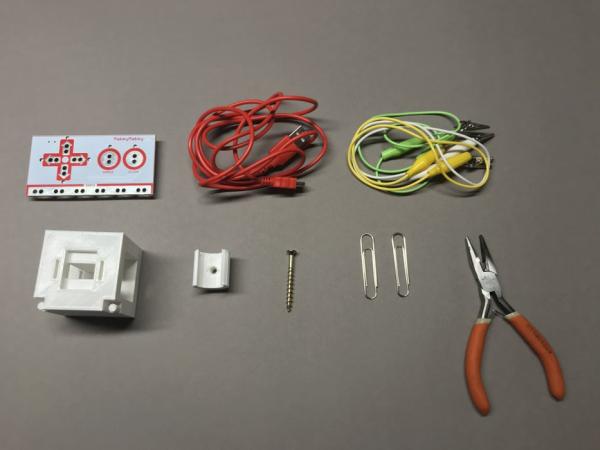
This 3D printed switch will allow the user to turn a Makey Makey into a “finger slide” for a “click” in gaming or could be right/left arrows to scroll through presentations. The addition of right and left terminal mounts for the ground wire makes it flexible to meet the hand dominance needs of the user.
Supplies:
What you will need:
- Makey Makey invention kit, including USB and alligator clips.
- 3D printed parts, see Thingiverse files for Click Brick Base and Finger Slide https://www.thingiverse.com/thing:4321525
- one, flat head #4 wood screw 1.5-1.75 inches
- two jumbo paper clips and pliers for bending
Step 1: Prepare Paper Clips
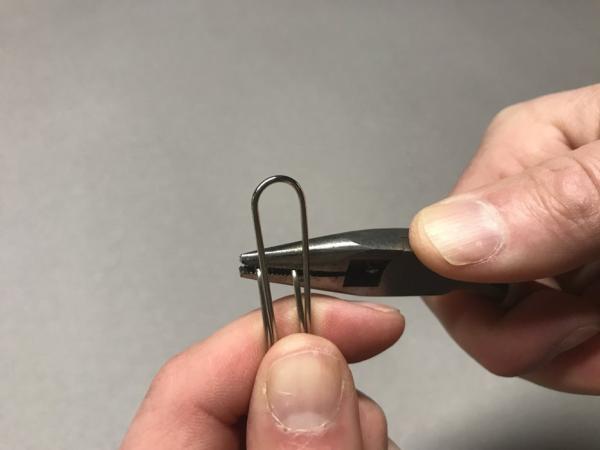
1. In order for the screw to make clean contact with the paper clips, bend the smaller, center part of the paper clips about 90 degrees.
Step 2: Installing Contacts
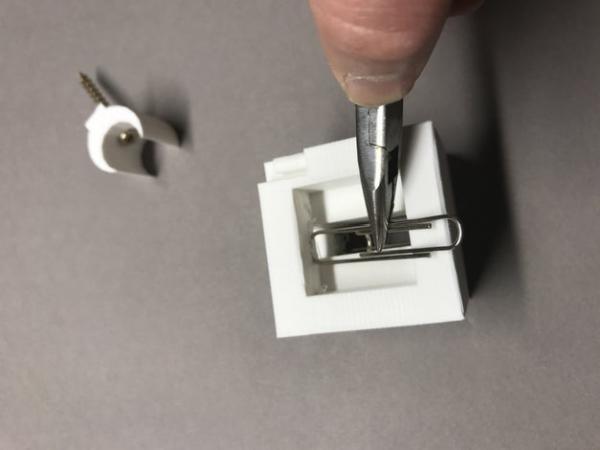
- After you’ve acquired both 3d printed parts, install the screw so that the head is in the center of the “finger cradle” and the point is coming out of the flat part of the slide.
- Use a pliers to install the paper clip into the slots with the bent part facing the center of the cube.
Step 3: Connect to Your Makey Makey
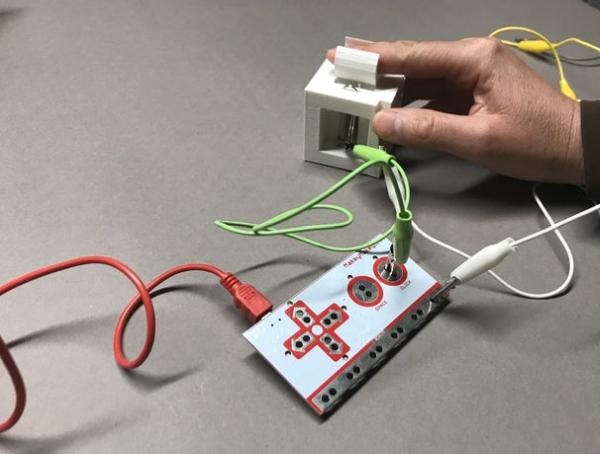
- Depending on the user, connect the right or left terminal (cylinder form) on the Click Brick with an alligator to Earth on Makey Makey to ground your circuit.
- Decide if your use would be for single click or right/left arrows.
- If using mouse click, use one alligator to connect “click” on Makey Makey to one paper clip.
- If using right/left arrows, use one alligator clip per paper clip (one on either side of Click Brick) to connect right and left arrows of Makey Makey to each paper clip.
Step 4: Enjoy Playing Your Favorite Scratch Game or Scrolling Through Your Next Presentation.
Be sure to rest your thumb on the ground (Earth) clip to complete your circuit.
Source: Click Brick Switch for Makey Makey
-
How do I prepare the paper clips for contact?
Bend the smaller, center part of the paper clips about 90 degrees to ensure clean contact with the screw. -
What is the correct orientation for installing the screw?
Install the screw so the head sits in the center of the finger cradle while the point emerges from the flat part of the slide. -
How should the bent part of the paper clip face during installation?
The bent part must face the center of the cube when inserting the paper clip into the slots. -
Which terminal connects to the Earth ground on the Makey Makey?
Connect either the right or left terminal cylinder on the Click Brick to the Earth clip based on user hand dominance. -
How do I configure the switch for single mouse clicks?
Use one alligator clip to connect the click pin on the Makey Makey to one of the paper clips. -
How do I set up the switch for scrolling right and left arrows?
Use one alligator clip per paper clip to connect the right and left arrow pins on the Makey Makey to each side of the Click Brick. -
What action completes the circuit for the device to work?
You must rest your thumb on the ground or Earth clip to complete the circuit.
