
Summary of Stepper motor Control with Atmega16
This project enables speed and direction control of a unipolar stepper motor using an ATmega16 microcontroller. A 4x4 keypad allows users to select left or right rotation and input speed values, which are displayed on a 16x2 LCD. The system runs on a 10MHz internal oscillator, and the motor can be stopped via a switch connected to Port A.0.
Parts used in the Stepper Motor Control Project:
- ATmega16 Microcontroller
- Unipolar Stepper Motor
- 4x4 Keypad
- 16x2 LCD Display
- Switch (connected to Port A.0)
- Proteus Simulation File
With this project you can control a unipolar stepper motor. You can control both the speed and the direction of the motor.
The speed and direction and can changed with help of the keypad. The data’s are displayed over the LCD display. A 4×4 keypad is used for entering the speed and selecting the direction. Load the hex file into the chip, dont forget to select the internal oscillator at 10Mhz. Then switch on the circuit and select the direction by pressing the corresponding key (Left or Right). Then enter the speed through the numeric keys and press the Enter key to start the operation. To switch off the motor press the separate switch which is connected to the port A.0Proteus simulation file is also added with the download file, so that you can run the program on your desktop.
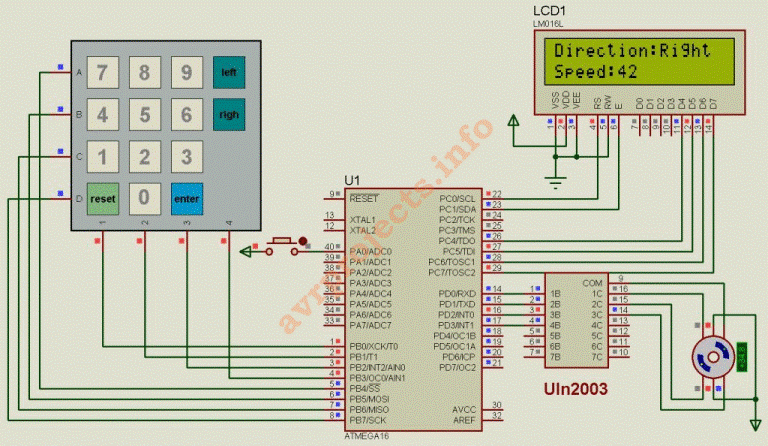
Bascom Code
$regfile = “m16def.dat”
$crystal = 1000000
Config Kbd = Portb
Config Lcd = 16 * 2
Config Lcdpin = Pin , Db4 = Portc.4 , Db5 = Portc.5 , Db6 = Portc.6 , Db7 = Portc.7 , Rs = Portc.0 , E = Portc.1
Config Portd = Output
Config Porta = Input
Dim A As Byte , B As Byte , Key As Byte , C As Byte , D As Byte , E As Byte
Cls
Cursor Off
B = 0
D = 1
Q:
Locate 1 , 1
Lcd “Direction:”
Locate 2 , 1
Lcd “Speed:”
Do
‘************Read Keyboard
A = Getkbd()
If A > 15 Then
Goto Q
Else
Key = Lookup(a , Dta)
If Key <= 9 Then
B = B * 10
B = B + Key
‘*************Direction
If D = 0 Then Lcd B
Waitms 270
Elseif Key = 10 Then
Locate 1 , 11
Lcd “Left”
C = 1
D = 0
B = 0
Elseif Key = 11 Then
Locate 1 , 11
Lcd “Right”
C = 2
D = 0
B = 0
‘****************reset
Elseif Key = 13 Then
Cls
D = 1
B = 0
Portd.0 = 0
Portd.1 = 0
Waitms 50
Goto Q
‘****************Enter key
Elseif Key = 14 Then
If D = 0 Then
Select Case C
Case 1 : Gosub R
Case 2 : Gosub T
End Select
End If
End If
End If
Wait 1
Loop
End
Dta:
Data 7 , 8 , 9 , 10 , 4 , 5 , 6 , 11 , 1 , 2 , 3 , 12 , 13 , 0 , 14 , 15
R:
Do
Portd = &B00000001 : Waitms B
Portd = &B00000011 : Waitms B
Portd = &B00000010 : Waitms B
Portd = &B00000110 : Waitms B
Portd = &B00000100 : Waitms B
Portd = &B00001100 : Waitms B
Portd = &B00001000 : Waitms B
Portd = &B00001001 : Waitms B
If Pina.0 = 1 Then
Locate 2 , 1
Lcd “Speed:”
B = 0
Lcd B ; ” ”
Return
End If
Loop
T:
Do
Portd = &B00001001 : Waitms B
Portd = &B00001000 : Waitms B
Portd = &B00001100 : Waitms B
Portd = &B00000100 : Waitms B
Portd = &B00000110 : Waitms B
Portd = &B00000010 : Waitms B
Portd = &B00000011 : Waitms B
Portd = &B00000001 : Waitms B
If Pina.0 = 1 Then
Locate 2 , 1
Lcd “Speed:”
B = 0
Lcd B ; ” ”
Return
End If
Loop
For more Detail: Stepper motor Control with Atmega16
- How do I change the direction of the motor?
Press the Left or Right key on the keypad to select the desired direction. - Can I adjust the speed of the motor?
Yes, enter the speed using the numeric keys on the keypad and press Enter to start. - What display is used to show data?
A 16x2 LCD display is used to show the direction and speed settings. - How do I stop the motor operation?
Press the separate switch connected to Port A.0 to turn off the motor. - Which oscillator frequency should be selected?
You must select the internal oscillator at 10MHz when loading the hex file. - What happens if I press the Enter key?
The motor starts operating based on the previously selected direction and entered speed. - Is there a way to reset the system?
Pressing the reset key clears the screen and resets the variables to their initial state. - Where can I run the program on my desktop?
The Proteus simulation file included in the download allows you to run the program on your desktop.
