
Summary of 3D Eagle BRD Viewer
3D BRD Viewer is a free web tool that renders CadSoft EAGLE .brd PCB designs in an interactive 3D view, allowing full 360-degree inspection. It includes many component models, supports adding or defining missing models, and saves model placements and adjustments in browser local storage per board filename.
Parts used in the3D BRD Viewer:
- CadSoft EAGLE .brd board files
- 3D component models (approximately two hundred built-in models)
- User-uploaded 3D model files (stp and dae formats)
- Browser local storage (for saving translations/offsets/models/boxes)
- Datasheets (used to define custom box dimensions)
3D BRD Viewer is a free tool to visualize CadSoft EAGLE PCB Designs in 3D. You can drag your .brd file anywhere on this page and have a full 360 degree view of how your board will appear after assembly.
Overview
3D BRD Viewer is a free tool to visualize CadSoft EAGLE PCB Designs in 3D. You can drag your .brd file anywhere on this page and have a full 360 degree view of how your board will appear after assembly.
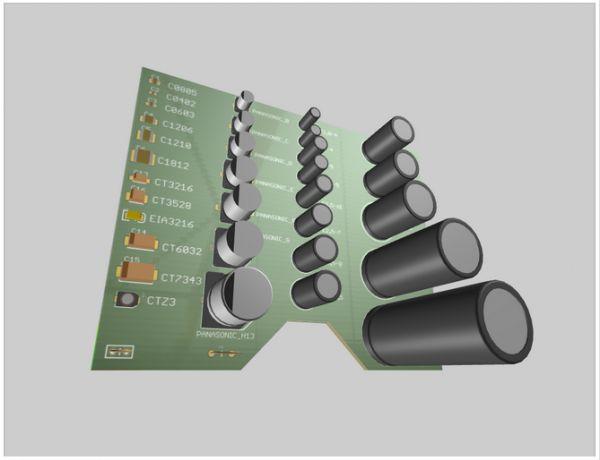
Models
for more detail: 3D Eagle BRD Viewer
- How do I view my EAGLE board in 3D?
Drag and drop your .brd file onto the page to load a full 360-degree 3D view. - What happens if a component model is not found?
Not found models appear red-ish; select the element, click Manage Model, then define a box or upload a model. - How can I add a model for a missing component?
You can define a box using datasheet dimensions or upload an stp or dae file for the component. - Which 3D file formats are supported for upload?
stp and dae formats are currently supported. - Will my model placements be remembered?
Yes, changes are saved in your browser local storage based on the board filename. - Can I adjust alignment for individual elements?
Yes, after placing a model you can move each element individually from its dropdown menu to fix alignment issues. - How many built-in models are available?
The tool currently has close to two hundred 3D models of different components.
